Deploy Gigamon Insights on VMware vCenter
This section provides the steps to deploy Gigamon Insights on VMware vCenter.
Before you begin:
|
■
|
Ensure that you have installed VMware vSphere Standard, Enterprise, or Enterprise Plus on compatible hardware. Refer to Hardware Requirements for the minimum hardware requirements and Open Ports Access Requirements for the required port numbers. |
|
■
|
Make sure the VMware ESXi host and the Gigamon Insights VM are time‑synchronized. If the ESXi host time is incorrect, the Gigamon Insights VM inherits it, which can cause TLS or signature errors when Gigamon Insights connects to services such as Amazon Bedrock and prevent successful registration in GigaVUE‑FM. |
The Gigamon Insights software package for vSphere is distributed as an OVA file. You can download the latest ova file from the Community.
Use the vSphere Client to install the Gigamon Insights OVA file. You cannot deploy Gigamon Insights directly from the ESXi host. You must login to the vCenter on the vSphere client to deploy a Gigamon Insights instance.
IMPORTANT NOTE:
The OVA file must be stored in a location that is accessible to the vSphere Client.
To deploy a Gigamon Insights using OVA file:
|
1.
|
Log in to the VMware vCenter web interface. |
|
2.
|
In the vSphere Client, select an inventory object that is a valid parent object of a virtual machine, such as a data center, cluster, or ESXi host. |
|
3.
|
Right-click the ESXi Host, Cluster, or data center on which you want to deploy Gigamon Insights, and then select Deploy OVF Template. |
The Deploy OVF Template wizard opens.
|
4.
|
In the Select OVF Template, choose one of the following options: |
|
o
|
URL—Enter the URL from where you want to download and install the OVF package. |
|
o
|
Local file—Click Browse to navigate to the OVA file available on your local machine, and then select the OVA file. |
|
5.
|
Click Next. The Select a name and folder page of the Deploy OVF Template wizard appears. Specify a unique name for the Gigamon Insights instance (for example, Insights-Prod-1), and then select a location and host to which you want to deploy the Gigamon Insights instance. |
|
6.
|
Click Next. The Select a compute resource page of the Deploy OVF Template wizard appears. Select a destination compute host for the OVF deployment. The Deploy OVF Template wizard performs validation to ensure that the selected host has all the required resources for the Gigamon Insights deployment. |
|
7.
|
Click Next. The Review details page of the Deploy OVF Template wizard appears. Verify the OVF template details. |
|
8.
|
Click Next. The Select storage page of the Deploy OVF Template wizard appears. In this page: |
|
a.
|
From the Select virtual disk format drop-down list, select the format for the virtual disks and provisioning. |
|
b.
|
Select the datastore where the virtual machine files will be stored. |
|
9.
|
Click Next. The Select networks page of the Deploy OVF Template wizard appears. |
|
a.
|
Select a network that provides the necessary connectivity for the Gigamon Insights VM, including management access and any required data-plane communication. |
|
b.
|
Ensure the IP Protocol drop-down remains at its default value. Altering this setting may result in vCenter-related issues. |
|
10.
|
Click Next. The Customize template page of the Deploy OVF Template wizard appears. Enter the following mandatory deployment properties: |
|
a.
|
SSH credentials — Provide one of the following for the admin user:
|
Note: Provide either an SSH password or an SSH public key for the admin user. The OVF wizard does not display a warning if both fields are left empty; however, the deployment fails in this case, and the error appears in the web or remote console. If this occurs, delete the VM and redeploy it, ensuring that at least one SSH credential is specified.
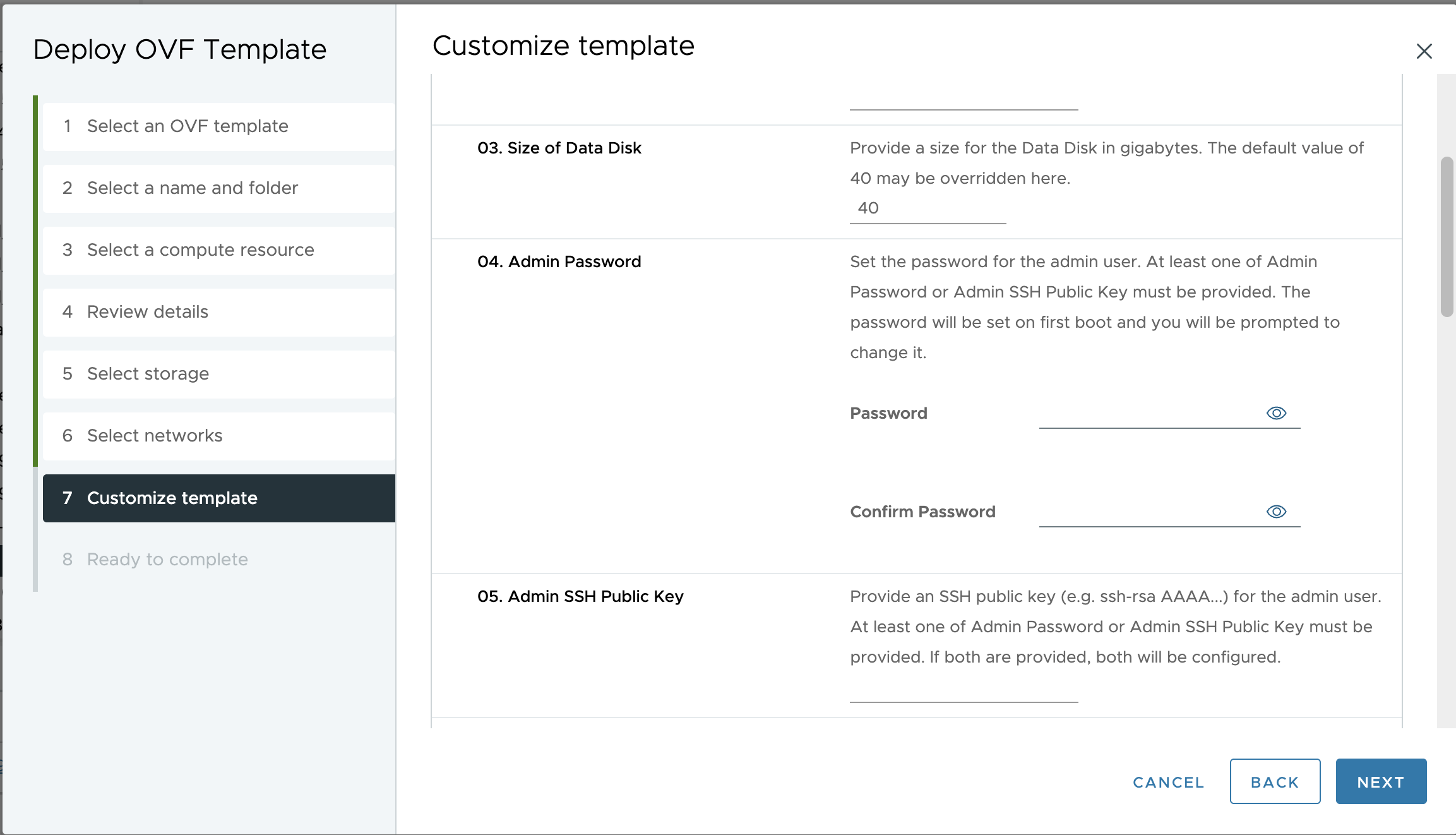
|
b.
|
FM HOST ADDRESS - IP address or FQDN of the GigaVUE‑FM instance. |
|
c.
|
FM ACCESS TOKEN - Access token generated in GigaVUE‑FM. |
Gigamon Insights uses these fields to register with GigaVUE‑FM.
|
11.
|
Click Next. The Ready to Complete page of the Deploy OVF Template wizard appears. |
|
a.
|
Verify that all the settings are correct, and then click Finish. |
|
b.
|
Monitor the deployment progress in the Recent Tasks pane on the vSphere Client Home page. After the operation completes, the Gigamon Insights instance is successfully deployed. |
|
12.
|
Go to Actions > Power > Power on the VM. Wait for the VM to complete its boot process. |
|
13.
|
Verify that Gigamon Insights is successfully deployed by navigating in GigaVUE‑FM > Settings > System > Gigamon Insights. |
Note: For security reasons, you are prompted to change the SSH password immediately after your first login.
What to do next
Refer to Gigamon Insights Post Deployment Configurations in GigaVUE‑FM.


